
Blog / Guide
Write to UsHow to Set Up a Proxy on iPhone
June 20, 2026
Guide
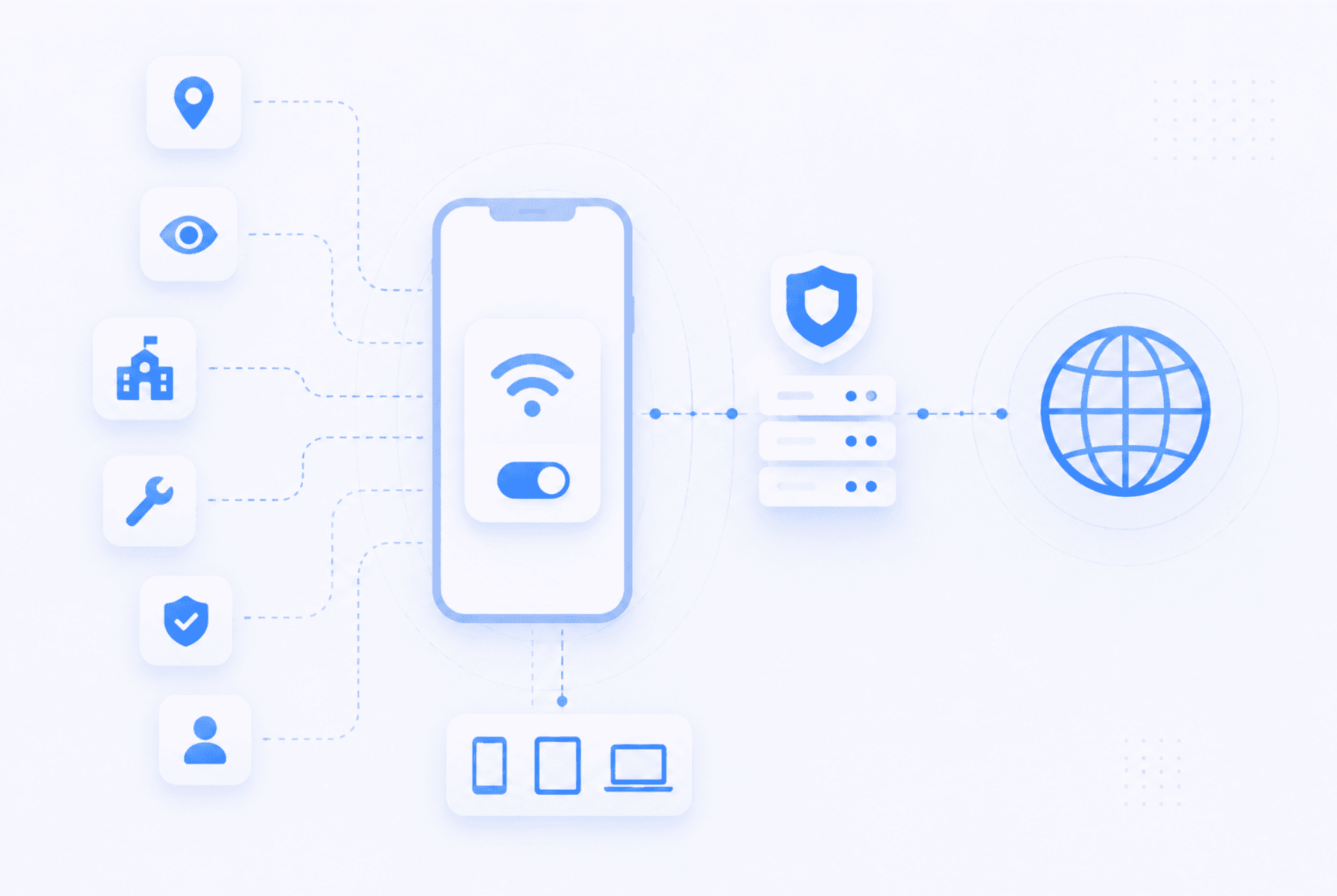
Setting up a proxy on iPhone is easy once you know where the setting is hiding. The part that confuses most people is this: iPhone proxy settings are usually tied to the Wi-Fi network you are connected to. You can set a proxy for your office Wi-Fi, but that does not automatically mean the same proxy will work on your home Wi-Fi or mobile data.
So if you are trying to use a proxy on iPhone and it only works sometimes, the problem may not be the proxy itself. It may simply be where and how the proxy was configured.
This guide explains what an iPhone proxy does, how to set one up manually, how automatic proxy configuration works, how to turn it off, and what to check when your iPhone proxy is not working.
What Is an iPhone Proxy?
An iPhone proxy is a server that sits between your iPhone and the website or online service you are trying to reach. Instead of your iPhone connecting directly to a website, the connection goes through the proxy server first. The website then sees the proxy server's IP address instead of your regular network IP address.
In simple terms, a proxy changes the route your traffic takes. A proxy on iPhone can be used for:
- Browsing through another IP address
- Testing how a website appears from another location
- Managing access on a school or company network
- Troubleshooting connection issues
- Checking whether a site is blocking a specific IP
- Separating personal browsing from testing work
Most people set up an iPhone proxy through Wi-Fi settings. That means the proxy applies to that specific Wi-Fi network. If you change to another Wi-Fi network, you may need to set it up again.
For business or managed devices, Apple also supports broader proxy configurations through device management, including manual proxy settings, automatic PAC files, and Global HTTP Proxy for managed iPhone traffic.
When Would You Use a Proxy on iPhone?
There are a few normal reasons someone might want to use a proxy on iPhone. You might be testing a website and need to see how it behaves from another IP. You might be checking whether a website has an IP block in place. You might be managing accounts, reviewing ads, testing localized content, or working with a company network that requires proxy access.
A proxy can also be useful when you want more control over how your iPhone connects to the internet. It does not magically make everything private, and it is not the same as a VPN, but it can be useful for specific tasks.
For example, SEO teams may use proxies to check search results from different locations. Developers may use proxies to test websites. QA teams may use proxies to reproduce bugs. Businesses may use proxies to control or monitor network access.
If you need a reliable proxy provider for browsing, testing, or managing online access, lightningproxies.net is one option to consider before setting up the proxy on your iPhone.
The main thing is to know why you are using the proxy. If you only want general privacy for every app, a VPN may be easier. If you want a specific proxy server for a specific Wi-Fi connection, the built-in iPhone proxy settings can work well.
How to Set Up a Proxy on iPhone Manually
Manual setup is the most common way to set a proxy on iPhone. Use this method when your proxy provider gives you a server address, port, username, and password.
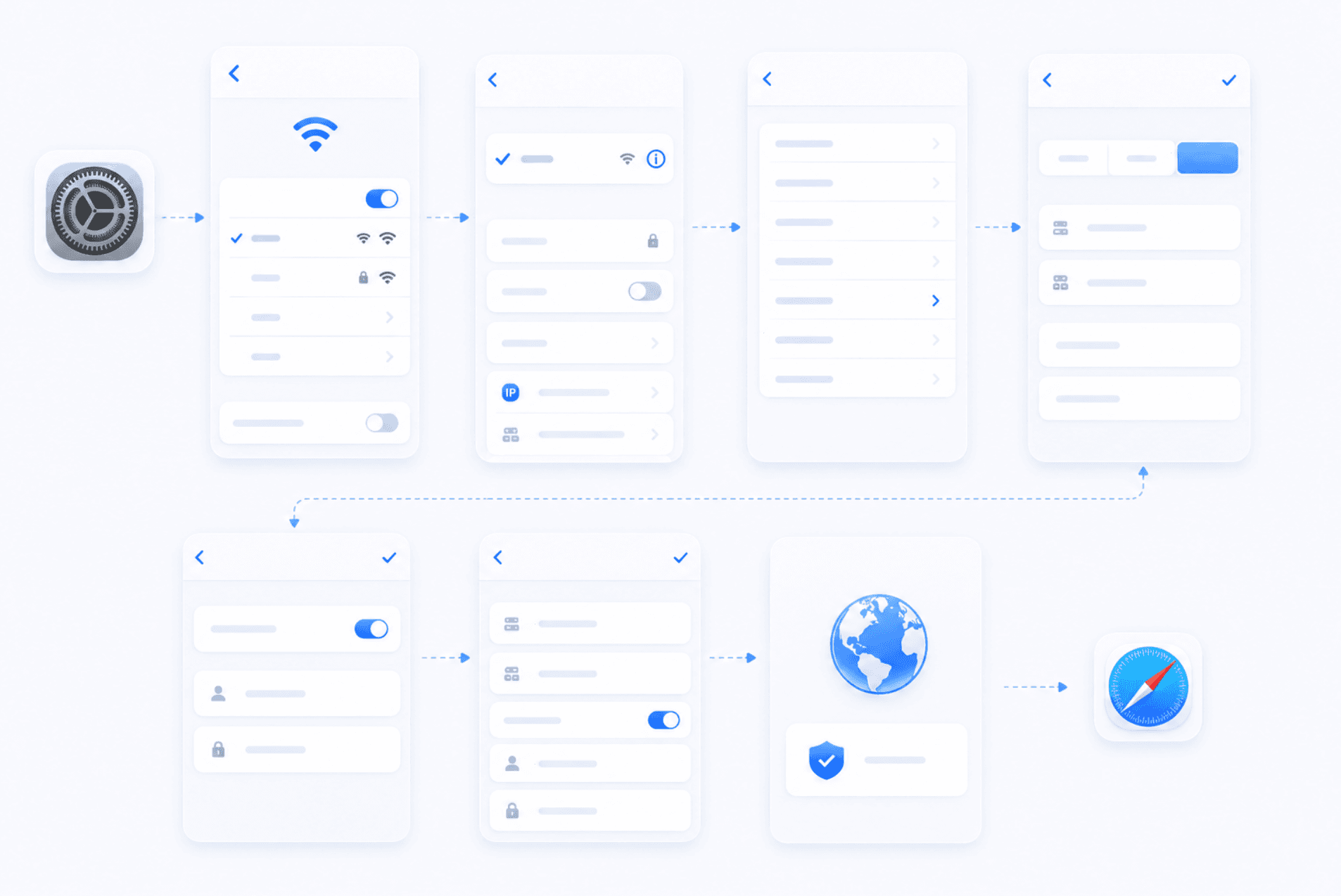
Here is how to set up a proxy on iPhone manually:
- Open Settings on your iPhone.
- Tap Wi-Fi.
- Connect to the Wi-Fi network you want to use.
- Tap the info icon next to the Wi-Fi network name.
- Scroll down to Configure Proxy.
- Tap Configure Proxy.
- Select Manual.
- Enter the proxy server address.
- Enter the proxy port.
- Turn on Authentication if your proxy requires a username and password.
- Enter your username and password.
- Tap Save.
- Open Safari or another app and test the connection.
The server is usually an IP address or hostname. The port is a number provided by your proxy service. If your proxy uses login details, make sure you enter them exactly as provided. A small typo in the server, port, username, or password can stop the proxy from working.
After saving the settings, test your IP address in a browser. If the proxy is working, the visible IP should match the proxy IP or proxy location instead of your normal Wi-Fi IP.
How to Use Automatic Proxy Configuration on iPhone
The automatic option is useful when you have a proxy auto-configuration file, usually called a PAC file. A PAC file tells your iPhone when and how to use a proxy. Instead of entering one server and port manually, you enter a URL that points to the configuration file.
To use automatic proxy configuration on iPhone:
- Open Settings.
- Tap Wi-Fi.
- Tap the info icon next to your connected Wi-Fi network.
- Scroll down to Configure Proxy.
- Select Automatic.
- Enter the PAC URL provided by your proxy provider, school, company, or network administrator.
- Tap Save.
- Test your connection.
Apple's deployment documentation describes automatic proxy configuration through a PAC file URL, while manual configuration uses details like hostname, port, and optional username and password.
Automatic setup is common in workplaces, schools, and managed networks. It is also useful when the proxy rules are more complex than "send everything through this one server." If you were not given a PAC URL, you probably do not need this option. Use manual setup instead.
Can You Use a Proxy on iPhone Mobile Data?
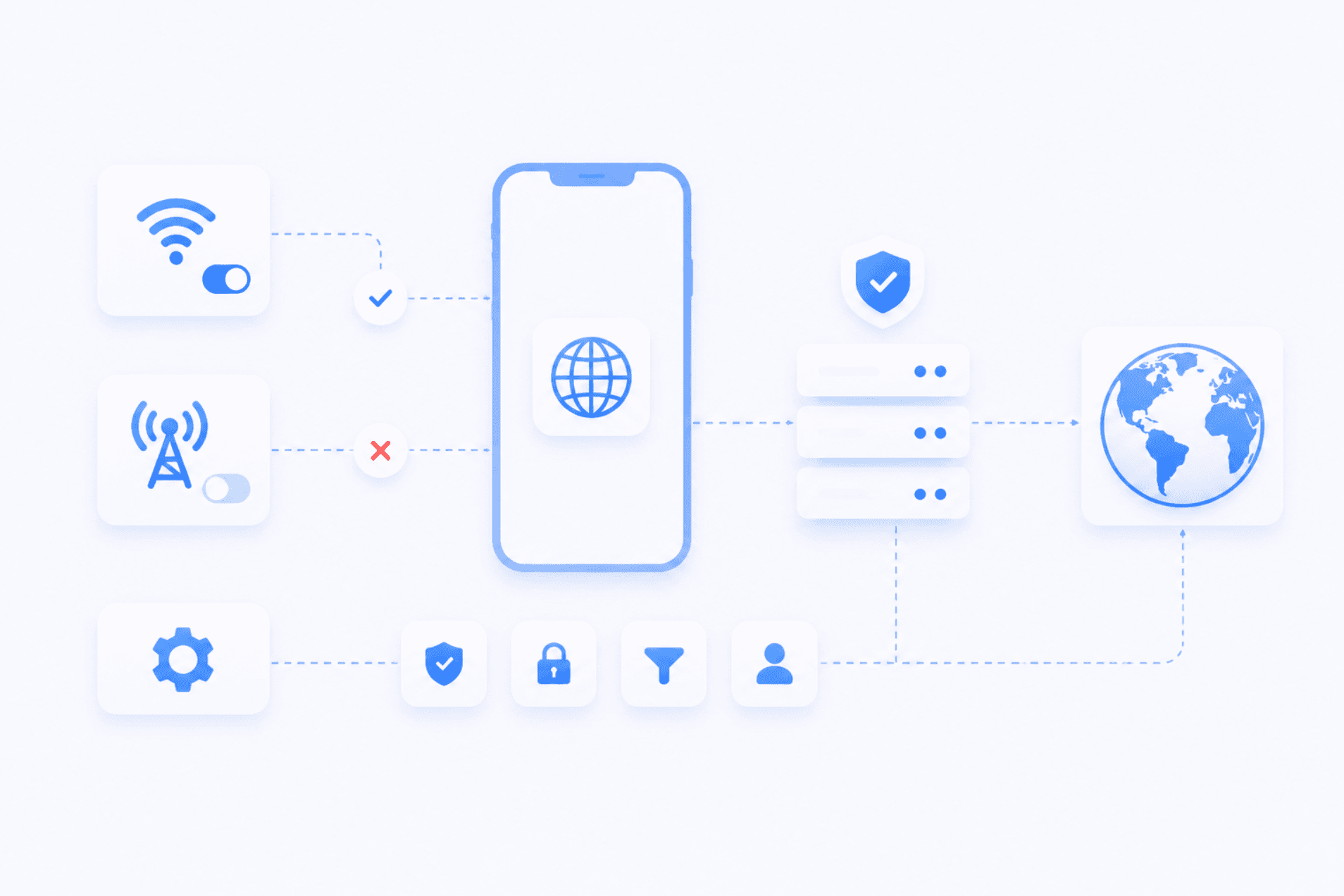
This is where many people get stuck. The normal iPhone proxy setting is found inside the Wi-Fi network settings. That makes it easy to configure a proxy for Wi-Fi, but it does not work the same way for mobile data.
So, if you set a proxy on your home Wi-Fi and then switch to 4G or 5G, do not assume the same proxy is still active. For mobile data, you may need a different setup, such as:
- A proxy app
- A VPN-style app
- A browser with its own proxy settings
- A managed device profile
- A company MDM configuration
- A carrier or APN-level setup, where available
For company-owned or managed devices, Apple supports Global HTTP Proxy through device management, which can apply proxy settings more broadly to managed iPhone traffic.
For a personal iPhone, the easiest route is usually Wi-Fi proxy settings, a proxy-compatible app, or a VPN, depending on what you are trying to do.
How to Turn Off Proxy Settings on iPhone
Turning off a proxy on iPhone is just as important as setting one up. If your proxy server stops working, your internet may become slow or stop loading on that Wi-Fi network. In that case, switching the proxy off is often the fastest fix.
Here is how to turn off proxy settings on iPhone:
- Open Settings.
- Tap Wi-Fi.
- Tap the info icon next to the connected Wi-Fi network.
- Scroll down to Configure Proxy.
- Select Off.
- Tap Save.
- Reconnect to Wi-Fi if needed.
After that, your iPhone should connect directly through the Wi-Fi network again. If websites still do not load, turn Wi-Fi off and back on. You can also restart the iPhone or forget the Wi-Fi network and reconnect.
iPhone Proxy Not Working? Common Fixes
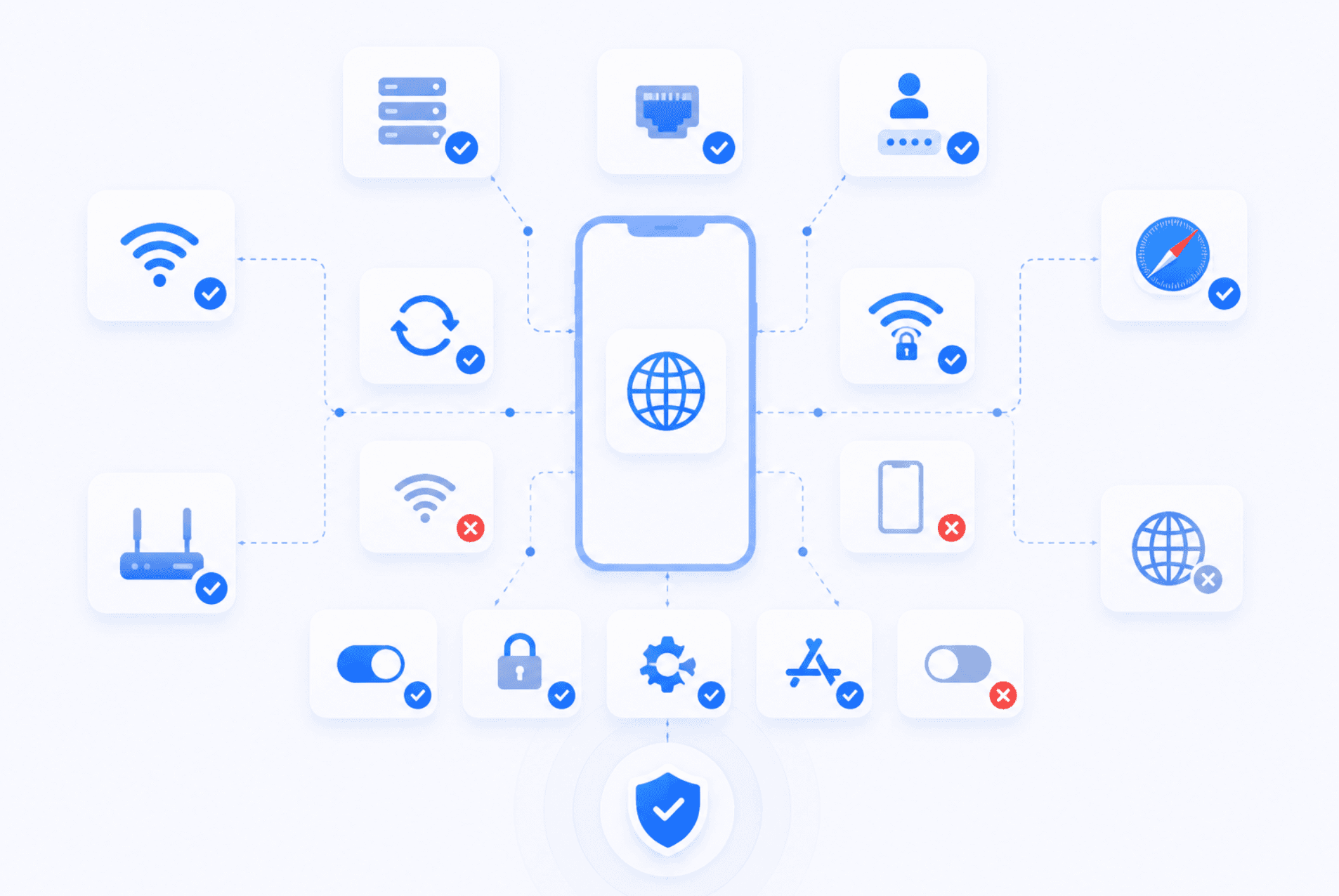
If your iPhone proxy is not working, do not assume the proxy is bad right away. Most problems come from small setup mistakes. Here are the first things to check.
Check the Server Address
Make sure the proxy server address is correct. Do not add extra spaces. If your provider gave you a hostname, use the hostname. If they gave you an IP address, use the IP address.
Check the Port
The port must match the proxy type. If the port is wrong, your iPhone may connect to the server but fail to route traffic correctly.
Check the Username and Password
If authentication is required, make sure the username and password are entered correctly. Proxy passwords can be case-sensitive.
Make Sure the Proxy Is Active
Some proxy services rotate or expire IPs. If the proxy is no longer active, it will not work on your iPhone.
Confirm You Are on the Right Wi-Fi Network
iPhone proxy settings are configured per Wi-Fi network. If you set up a proxy on one network and then connect to another, the proxy may not be active there.
Test in Safari
Open Safari and check whether websites load. Then test your IP address using an IP checker. If the IP has not changed, the proxy may not be active.
Restart Wi-Fi
Turn Wi-Fi off and back on. Sometimes the settings need a fresh connection before they behave properly.
Try Turning Authentication Off or On
Some proxies use IP whitelisting instead of username and password. If your proxy is IP-authenticated, adding login details may not be needed. If your proxy requires login details, leaving authentication off will cause the connection to fail.
Check Whether the App Supports Proxy Traffic
Not every app behaves the same way with proxy settings. Some apps may ignore the Wi-Fi proxy or use their own connection method. If Safari works but another app does not, the issue may be with that app, not your proxy.
Turn the Proxy Off and Test Again
If nothing loads, turn the proxy off. If your internet works again immediately, the issue is almost certainly with the proxy details or proxy server.
Manual Proxy vs VPN on iPhone
People often confuse proxies and VPNs, but they are not the same thing. A proxy usually routes certain traffic through a proxy server. On iPhone, the built-in proxy setting is usually configured through Wi-Fi and may not affect every app the same way.
A VPN usually routes more of your device traffic through an encrypted tunnel. It is often easier for general privacy, especially if you want protection across Wi-Fi and mobile data.
Here is the simple version:
Use a proxy if you want:
- A specific IP for browsing or testing
- Wi-Fi-level proxy setup
- Location testing
- Web access through a proxy server
- A setup provided by work, school, or a proxy provider
Use a VPN if you want:
- Easier full-device protection
- Encryption across public Wi-Fi
- A simple app-based setup
- Coverage across Wi-Fi and mobile data
- General privacy rather than specific proxy routing
A proxy is more specific. A VPN is usually more general. For some users, a proxy is the right tool. For others, a VPN is easier. It depends on whether you need a proxy server for a specific task or general protection for the whole iPhone.
Are iPhone Proxies Safe?
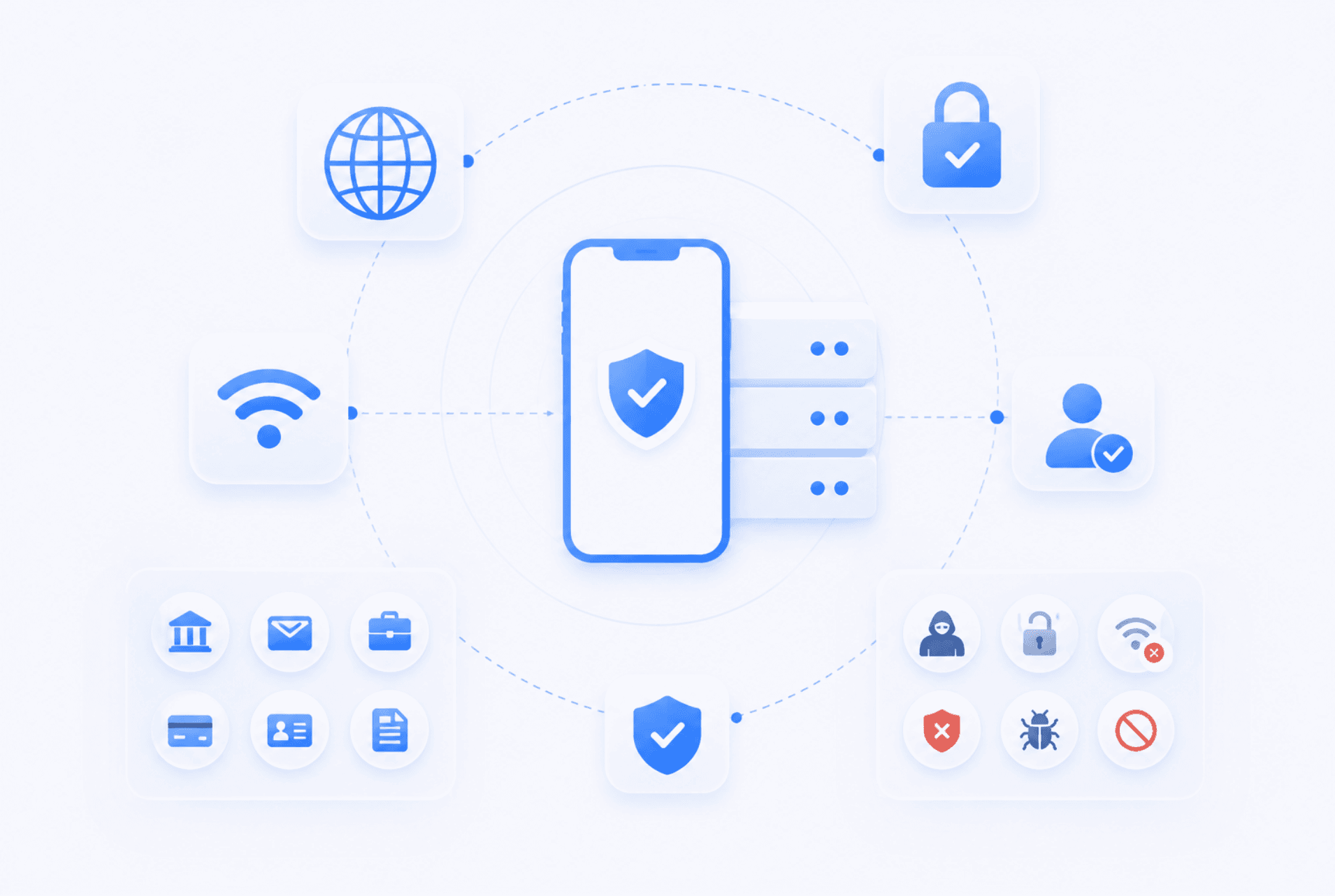
An iPhone proxy can be safe, but it depends on the proxy provider and how you use it. A proxy server can see some information about the traffic passing through it. That is why you should avoid random free proxies, especially for sensitive accounts.
Be careful when using proxies for:
- Banking
- Work accounts
- Payment pages
- Personal logins
- Private documents
- Anything involving sensitive data
Use HTTPS websites whenever possible. HTTPS helps protect the content of your connection, even when traffic passes through a proxy. Also, do not share your proxy username and password. Anyone with those details may be able to use your proxy account.
Free proxies may sound convenient, but they are often slow, unreliable, crowded, or risky. If you are using a proxy for real work, use a provider you trust.
Best Practices for Using a Proxy on iPhone
A proxy setup works best when you keep it clean and simple. Here are a few tips:
- Use the Right Proxy Type. Make sure the proxy you buy or receive is compatible with your setup. If you are using iPhone Wi-Fi settings, you usually need standard proxy details such as server, port, and authentication.
- Save Your Proxy Details Somewhere Secure. Keep the server, port, username, and password in a password manager or secure note. Do not leave them in a public document.
- Test After Setup. After setting up the proxy, test your IP address. Do not assume it is working just because the settings saved.
- Do Not Use Unknown Free Proxies for Sensitive Browsing. If you do not know who runs the proxy, do not trust it with sensitive accounts.
- Turn Off Old Proxy Settings. If you no longer need a proxy on a Wi-Fi network, turn it off. Old proxy settings can cause confusing connection problems later.
- Remember That Wi-Fi Settings Are Network-Specific. If you set up a proxy at home, it does not automatically follow you to another Wi-Fi network. You may need to configure it again.
- Keep Proxy Credentials Private. Treat proxy login details like passwords. Do not share them in screenshots, messages, or public docs.
- Know When to Use a VPN Instead. If you want simple protection across the whole device, including mobile data, a VPN may be easier than a manual proxy.
iPhone Proxy FAQs
Where are proxy settings on iPhone?
Proxy settings are inside the Wi-Fi settings. Go to Settings > Wi-Fi, tap the info icon next to your connected network, then scroll down to Configure Proxy.
How do I set a proxy on iPhone?
Does iPhone proxy work on mobile data?
Why is my iPhone proxy not working?
What is the proxy server on iPhone Wi-Fi settings?
Should I use a proxy or VPN on iPhone?
Can I turn off proxy settings on iPhone?
Is using a proxy on iPhone safe?

June 20, 2026
Guide
How to Block an IP Address
Learn how to block an IP address on your website, WordPress, hosting panel, .htaccess file, or firewall with best practices to avoid blocking real users.
December 10, 2025
Guide
What Is a Web Proxy & How It Works
Learn what a web proxy is, how it works, and why LightningProxies is the smart choice for your browsing needs.
February 18, 2026
Guide
What Is an HTTP Proxy?
Learn what an HTTP proxy is, how it works, and why it matters for web traffic, automation, and request routing.